
Introduction
Windows 11 has brought a fresh, modern look to the Windows operating system, along with improved performance and features. One of the most crucial aspects of using Windows 11 is keeping your system updated. Windows 11 Updates ensure your PC stays secure, runs smoothly, and has access to the latest features. For beginners and intermediate users, understanding these updates is essential to prevent errors, optimize performance, and enjoy a seamless computing experience.
Many users ignore updates because they think they are optional or time-consuming. However, updates often include security patches, bug fixes, and new functionalities that can significantly improve your device’s stability. Whether you are using Windows 11 on a personal laptop or a work computer, staying up-to-date protects your data and enhances productivity.
In this guide, we will cover everything about Windows 11 Updates, including what they are, why they matter, a detailed step-by-step guide to updating your system, benefits, risks, common mistakes, expert tips, and answers to frequently asked questions. By the end of this article, you will feel confident managing your Windows 11 updates efficiently and safely.
What is Windows 11 Updates?
Windows 11 Updates are official software releases provided by Microsoft to improve your operating system. These updates can include:
- Security patches to protect against malware and hackers
- Bug fixes to resolve issues that affect system performance
- Feature updates to add new tools and functions
- Driver updates to improve hardware compatibility
Updates can be cumulative, meaning they include previous updates, or feature-specific, targeting a particular issue. Microsoft often releases updates monthly, with major updates coming twice a year under the “Windows Feature Update” program.
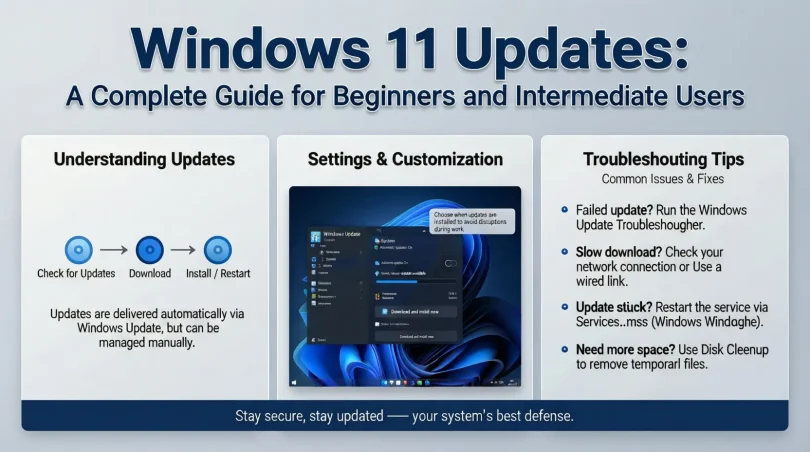
Windows 11 Updates are designed to work automatically through the Windows Update tool. Users can also manually check for updates, download them, and install them when convenient. The goal is to keep your PC secure, stable, and up-to-date with the latest improvements.
Why is Windows 11 Updates Important?
Keeping your system updated is more than just a routine task. Here’s why Windows 11 Updates are important:
- Enhanced Security: Updates fix vulnerabilities that hackers may exploit, ensuring your data and privacy are protected.
- Better Performance: Bug fixes and system optimizations improve speed and efficiency.
- Access to New Features: Feature updates add new tools, apps, and functionality that make your system more versatile.
- Software Compatibility: Updated systems are more compatible with modern apps, programs, and peripherals.
- System Stability: Updates fix known issues that could cause crashes, errors, or freezes.
Neglecting updates can leave your system exposed to malware, performance problems, and compatibility issues. Therefore, regular updates are crucial for a safe and smooth computing experience.
Detailed Step-by-Step Guide to Windows 11 Updates
Step 1: Check Your Current Windows Version
- Press Windows + I to open Settings.
- Go to System > About.
- Look for Windows specifications to see your current version and build.
Knowing your version helps you identify whether you need a minor update or a major feature update.
Step 2: Open Windows Update
- Press Windows + I to open Settings.
- Click on Windows Update in the sidebar.
- Click Check for updates.
Windows will automatically search for available updates.
Step 3: Download and Install Updates
- If updates are found, click Download.
- Wait for the download to complete.
- Click Install Now.
Tip: Large updates may take time, so ensure your PC is plugged in and connected to the internet.
Step 4: Restart Your PC
After installation, Windows may require a restart. You can either:
- Click Restart Now to complete the installation immediately
- Choose Schedule the Restart to set a convenient time
Step 5: Verify Installation
- Go to Settings > Windows Update > Update History.
- Check that the latest update has been installed successfully.
Step 6: Enable Automatic Updates
- Go to Settings > Windows Update > Advanced Options.
- Turn on Receive updates automatically.
This ensures your system stays current without manual checks.
Benefits of Windows 11 Updates
- Improved Security: Protects against malware and cyberattacks.
- New Features: Access to tools like Snap Layouts, Widgets, and Teams integration.
- System Stability: Reduces crashes and freezes.
- Performance Boost: Optimizes system speed and responsiveness.
- Driver Updates: Enhances hardware compatibility.
- Bug Fixes: Resolves known issues affecting functionality.
- Compatibility: Keeps software and apps running smoothly.
Disadvantages / Risks
While updates are mostly beneficial, there can be some drawbacks:
- Temporary System Slowness: During installation, your PC may run slower.
- Large File Sizes: Updates can consume significant storage space.
- Update Failures: Occasionally, updates may fail or cause errors.
- Compatibility Issues: Rarely, new updates can conflict with older hardware or software.
- Forced Restarts: Some updates may automatically restart your PC, interrupting work.
Being aware of these risks helps you prepare and manage updates safely.
Common Mistakes to Avoid
- Ignoring Updates: Delaying updates increases security risks.
- Installing Updates Without Backup: Always back up important files before a major update.
- Interrupting Installation: Shutting down mid-update can corrupt the system.
- Not Checking Storage Space: Ensure there is enough disk space before updating.
- Skipping Driver Updates: Drivers are crucial for hardware performance and stability.
- Assuming Updates Are Optional: Critical updates are essential for security.
FAQs
1. How often should I update Windows 11?
It’s recommended to check for updates monthly and install major feature updates twice a year. Automatic updates can simplify this process.
2. Can I delay Windows 11 Updates?
Yes, you can pause updates for up to 35 days, but it is not recommended to delay security updates.
3. Will updating Windows 11 slow down my PC?
Temporary slowdowns may occur during installation, but updates generally improve overall performance.
4. How do I fix Windows 11 Update errors?
Common fixes include restarting your PC, checking internet connectivity, freeing disk space, or using the Windows Update Troubleshooter.
5. Are Windows 11 Updates free?
Yes, all official updates from Microsoft are completely free.
6. Do I need an internet connection for updates?
Yes, a stable internet connection is required to download and install updates.
7. What happens if an update fails?
Windows may attempt automatic repair, or you can manually download the update from the Microsoft Update Catalog.
8. Can updates remove my files?
No, updates typically do not remove personal files, but backing up important data is always recommended.
Expert Tips & Bonus Points
- Use Disk Cleanup: Before major updates, run Disk Cleanup to free space.
- Check Update History: Review what updates were installed and identify any issues.
- Enable Delivery Optimization: Allows faster updates using nearby PCs for download.
- Set Active Hours: Prevent updates from restarting your PC during work hours.
- Use System Restore: Create a restore point before major updates to revert if needed.
- Regular Backups: Always back up important data in case of update failure.
- Keep Drivers Updated: Use Device Manager to ensure hardware drivers are compatible.
Conclusion
Windows 11 Updates are an essential part of maintaining a secure, stable, and high-performing system. Regular updates protect your computer from security threats, improve compatibility with new software, and introduce new features that enhance productivity. While updates may sometimes cause minor slowdowns or errors, the benefits far outweigh the risks.
For beginners and intermediate users, understanding the update process, enabling automatic updates, and following best practices ensures a smooth experience. By avoiding common mistakes, backing up important files, and keeping your system up-to-date, you can enjoy all the advantages of Windows 11 without interruptions. Staying proactive with Windows 11 Updates is the key to a safe, reliable, and efficient computing experience.