
Introduction
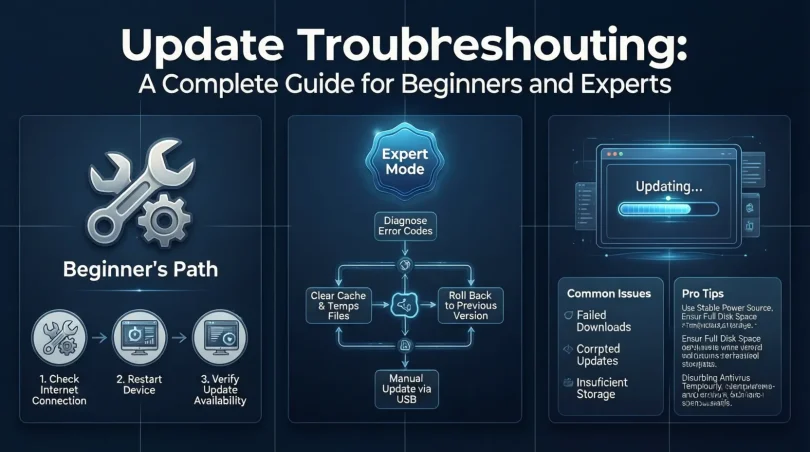
Keeping your software and operating system up to date is essential for security, performance, and access to the latest features. However, updates can sometimes fail or cause unexpected issues. This is where update troubleshooting becomes crucial. Whether you are a beginner struggling with update errors or an intermediate user wanting smoother system maintenance, understanding how to troubleshoot updates can save time, prevent frustration, and protect your data.
Update problems can arise from multiple causes. Sometimes, a poor internet connection interrupts the download, or a lack of storage prevents installation. Other times, software conflicts or corrupted files can block the update process. Knowing how to identify the root cause and apply the right fix is key to resolving these issues efficiently.
In this guide, we will explore update troubleshooting in depth. You will learn what it is, why it matters, and a step-by-step process to solve update-related problems. Additionally, we will cover common mistakes, risks, benefits, and expert tips to make your troubleshooting efforts more effective. By the end of this article, you will be confident in handling updates on your own, ensuring your system remains secure, fast, and reliable.
What is Update Troubleshooting?
Update troubleshooting is the process of identifying, diagnosing, and fixing problems that occur during software or system updates. This can involve operating systems, applications, drivers, or security software. When an update fails or causes unexpected behavior, troubleshooting helps restore functionality and prevents data loss.
Update troubleshooting often requires a combination of technical knowledge and practical steps. It may include checking internet connectivity, clearing temporary files, verifying storage space, or resetting update components. For complex issues, troubleshooting may involve consulting error logs or using built-in diagnostic tools.
Essentially, update troubleshooting ensures that software continues to function as intended after an update attempt. It’s a proactive approach to maintaining system health, preventing errors, and avoiding potential security vulnerabilities caused by outdated software.
Why is Update Troubleshooting Important?
- System Security: Updates often patch security vulnerabilities. Failed updates can leave your system exposed to malware, ransomware, or hacking attempts.
- Performance Optimization: Updates improve software efficiency. Troubleshooting ensures your applications run smoothly without lag or crashes.
- Compatibility: Some programs may stop working if updates are incomplete or corrupted. Proper troubleshooting maintains software compatibility.
- Data Protection: Certain updates may affect important files or settings. Troubleshooting minimizes the risk of data loss.
- Time Efficiency: Fixing update problems promptly prevents repeated failures and saves time in the long run.
- User Experience: A system that updates successfully provides a smoother and more reliable experience for work, gaming, or personal use.
Detailed Step-by-Step Guide to Update Troubleshooting
Step 1: Identify the Problem
Before fixing anything, determine the specific issue. Ask:
- Is the update failing to download or install?
- Are there error messages or codes?
- Did the issue start after a specific update?
Documenting symptoms and error codes will help you choose the correct solution.
Step 2: Check Your Internet Connection
A stable connection is crucial for downloading updates.
- Ensure you are connected to a reliable Wi-Fi or Ethernet network.
- Restart your router if the connection is unstable.
- Disable VPNs temporarily, as they can sometimes block updates.
Step 3: Verify Storage Space
Insufficient disk space can prevent updates.
- Check available storage on your system drive.
- Delete unnecessary files or use disk cleanup tools.
- Ensure at least 10–15% free space for smooth update installation.
Step 4: Restart Your System
Many update issues are temporary and can be resolved with a simple restart.
- Close all programs and save your work.
- Restart the computer and attempt the update again.
Step 5: Run the Update Troubleshooter
Most operating systems have built-in troubleshooters. For example:
- Windows: Settings → Update & Security → Troubleshoot → Windows Update
- macOS: Use Software Update diagnostics in System Settings
Follow the on-screen instructions to automatically detect and fix issues.
Step 6: Clear Temporary Files and Cache
Corrupted temporary files can block updates.
- Windows: Run Disk Cleanup or manually delete files from
C:\Windows\SoftwareDistribution\Download - macOS: Clear caches using the Library → Caches folder or third-party cleaner tools
Step 7: Check for Software Conflicts
Third-party antivirus, firewall, or system optimization tools may interfere with updates.
- Temporarily disable antivirus or firewall during the update process.
- Close unnecessary background applications.
- Re-enable security tools immediately after the update.
Step 8: Reset Update Components
Sometimes update services themselves can become corrupted.
- Windows: Run Command Prompt as admin and use:
- macOS: Restart the software update service or reset PRAM/NVRAM if needed.
Step 9: Manually Download the Update
If automatic updates fail:
- Visit the official website of the software.
- Download the latest version or standalone update installer.
- Install it manually following on-screen prompts.
Step 10: Seek Professional Help
If none of the above steps work:
- Contact official support or community forums.
- Provide error codes and detailed symptoms.
- Avoid third-party patches from unreliable sources to prevent security risks.
Benefits of Update Troubleshooting
- Enhanced Security: Prevents vulnerabilities from outdated software.
- Improved Performance: Fixes errors that slow down systems.
- Reduced Downtime: Ensures smooth operations for work or personal tasks.
- Data Integrity: Protects files from corruption during failed updates.
- User Confidence: Increases trust in system stability and software reliability.
Disadvantages / Risks
- Potential Data Loss: Incorrect troubleshooting may lead to accidental deletion.
- Time-Consuming: Some complex issues may take hours to resolve.
- Temporary System Instability: Certain fixes may temporarily affect performance.
- Software Conflicts: Resetting or reinstalling updates may conflict with existing applications.
Common Mistakes to Avoid
- Ignoring error messages without checking codes.
- Skipping system restarts before troubleshooting.
- Using unofficial update files from unknown sources.
- Forgetting to backup important data before major fixes.
- Disabling security tools permanently instead of temporarily.
- Not checking internet stability before attempting updates.
FAQs About Update Troubleshooting
Q1: Why do updates fail to install?
A1: Updates can fail due to insufficient storage, poor internet connectivity, corrupted files, or software conflicts. Identifying the cause helps choose the correct fix.
Q2: How can I check which update failed?
A2: On Windows, go to Settings → Update & Security → Windows Update → View Update History. On macOS, check System Settings → Software Update.
Q3: Is it safe to skip updates?
A3: Skipping updates can leave your system vulnerable to security risks and bugs. Regular updates are recommended.
Q4: Can antivirus software block updates?
A4: Yes. Temporarily disabling antivirus or firewall may help install updates, but re-enable security tools afterward.
Q5: What if my system keeps restarting during updates?
A5: This may indicate corrupted update files. Try clearing temporary files, resetting update components, or manually installing the update.
Q6: Should I backup my data before troubleshooting updates?
A6: Absolutely. Backing up files prevents accidental data loss during troubleshooting or major system changes.
Q7: Are update troubleshooters effective?
A7: Built-in troubleshooters can fix many common issues automatically, saving time and reducing manual effort.
Q8: How often should I check for updates?
A8: Check weekly for software updates and ensure automatic updates are enabled for critical security patches.
Expert Tips & Bonus Points
- Enable Automatic Updates: Reduces the chances of missing critical patches.
- Use Stable Internet: Prefer wired connections for large updates.
- Keep Backup Copies: Regular backups prevent data loss during failed updates.
- Monitor Error Codes: Search error codes online for quick solutions.
- Limit Background Programs: Close unnecessary apps to prevent interference.
- Document Your Fixes: Keep a log of troubleshooting steps for future reference.
Conclusion
Update troubleshooting is an essential skill for maintaining a secure, fast, and reliable system. It ensures that software and operating systems function correctly, minimizing performance issues and protecting your data. By understanding the causes of update failures, using systematic troubleshooting steps, and following expert tips, you can solve most update problems efficiently.
Remember, patience and careful observation are key. Always start by identifying the issue, check internet connectivity, ensure sufficient storage, and use built-in troubleshooters. Avoid common mistakes such as ignoring error messages or using unverified update files. With consistent practice, update troubleshooting becomes easier, helping you maintain a smoother and safer computing experience.
Investing time in understanding and performing update troubleshooting not only saves you frustration but also extends the lifespan of your software and devices. By staying proactive, keeping backups, and following the best practices outlined in this guide, you can confidently handle update challenges and keep your system running at its best.