
Introduction
Windows Update History is one of the most important yet often ignored features in the Windows operating system. Many users install updates without knowing what has changed, what was fixed, or why a system suddenly behaves differently after an update. For beginners and intermediate users, understanding Windows Update History can feel confusing at first. However, once you learn how it works, it becomes a powerful tool for managing system stability, security, and performance.
In simple terms, Windows Update History keeps a detailed record of every update installed on your computer. This includes security patches, feature updates, driver updates, and quality improvements. By checking this history, you can see exactly when an update was installed and what it contained. This information is especially useful when troubleshooting errors or performance issues.
Moreover, Windows Update History helps users stay informed and in control. Instead of guessing what changed, you can review updates clearly and decide your next steps. For example, if a problem started after a recent update, the update history helps you identify the cause quickly.
In this guide, you will learn what Windows Update History is, why it is important, how to access it step by step, and how to use it wisely. Everything is explained in simple English with practical examples, making it easy to follow for beginners and helpful for intermediate users.
What is Windows Update History?
Windows Update History is a built-in record inside the Windows operating system that shows a list of all updates installed on your device. It acts like a logbook that tracks system changes made through updates.
This history includes different types of updates. These can be security updates that protect your system, feature updates that add new tools, driver updates that improve hardware compatibility, and quality updates that fix bugs.
Each entry in Windows Update History shows important details. You can see the update name, the installation date, and whether the update was successful or failed. This information helps users understand what has happened on their system over time.
Unlike automatic updates that work in the background, Windows Update History gives you visibility. It allows you to review updates instead of blindly trusting the system. For many users, this transparency builds confidence and reduces frustration.
Why is Windows Update History Important?

Windows Update History plays a key role in system maintenance and security. Without it, users would have no clear way to track changes made to their operating system.
One major reason it is important is troubleshooting. If your computer starts crashing or slowing down, checking Windows Update History can reveal whether a recent update caused the issue. This saves time and reduces guesswork.
Another reason is security awareness. Windows updates often include critical security patches. By reviewing update history, you can confirm that your system is protected and up to date.
Windows Update History also supports better system management. Advanced users and IT professionals rely on it to track update patterns and maintain stable environments. Even home users benefit from understanding what updates are installed.
In short, Windows Update History gives control, clarity, and confidence. It turns automatic updates into understandable actions rather than mysterious changes.
Detailed Step-by-Step Guide
How to Access Windows Update History
Accessing Windows Update History is simple and does not require technical skills.
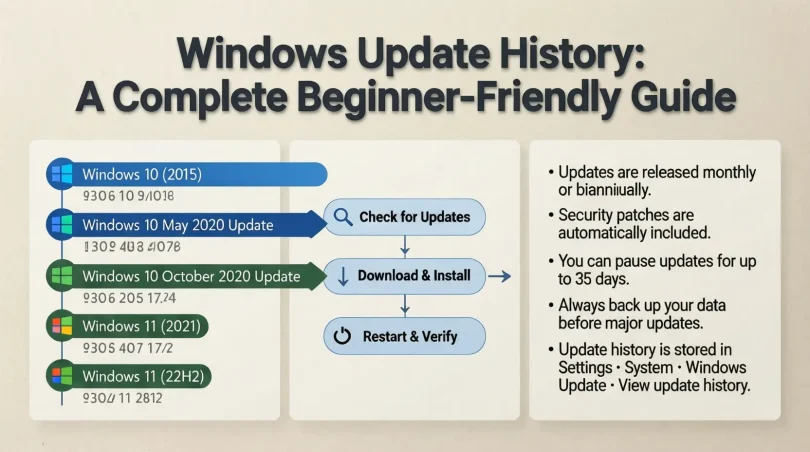
First, click on the Start menu and open Settings. Then select “Update & Security.” After that, click on “Windows Update.” Finally, choose “View update history.”
Once opened, you will see a categorized list of updates. These categories include feature updates, quality updates, driver updates, and definition updates.
Understanding Update Categories
Feature updates are major releases that introduce new functionality. These updates usually arrive once or twice a year and may change the user interface.
Quality updates are smaller and focus on fixing bugs and improving performance. They are released more frequently and are usually safer.
Driver updates improve communication between Windows and hardware components. These updates help devices work smoothly.
Definition updates are related to security tools like Microsoft Defender. They update virus definitions to protect against new threats.
Checking Update Details
You can click on any update entry to learn more. This opens a support page with detailed information about what the update includes and what issues it addresses.
Reading update details helps you understand system changes. It also helps you decide whether an update is relevant to your needs.
Uninstalling Problematic Updates
If an update causes issues, Windows Update History allows you to uninstall it. Click on “Uninstall updates” at the top of the update history page.
Select the update you want to remove and follow the instructions. After uninstalling, restart your computer to apply changes.
Using Update History for Troubleshooting
When troubleshooting, note the date when problems started. Compare this with recent updates listed in Windows Update History.
This method helps isolate issues quickly. It is especially useful when dealing with driver conflicts or system errors.
Benefits of Windows Update History
- Helps identify problematic updates quickly
- Improves system troubleshooting efficiency
- Increases transparency and user awareness
- Supports better security management
- Allows informed update decisions
- Useful for both home users and professionals
Disadvantages / Risks
- Too much technical information for beginners
- Uninstalling updates may reduce security
- Feature updates may cause compatibility issues
- Requires manual review for full benefit
Common Mistakes to Avoid
Many users ignore Windows Update History completely. This mistake leads to confusion when problems occur.
Another common mistake is uninstalling updates without understanding their purpose. Removing security updates can expose your system to risks.
Some users also confuse feature updates with quality updates. Understanding the difference prevents unnecessary worry.
Lastly, relying only on update history without proper backups is risky. Always back up important data before making changes.
FAQs
What does Windows Update History show?
Windows Update History shows a list of installed updates, including security, feature, and driver updates. It also displays installation dates and statuses.
How often should I check Windows Update History?
Checking once a month is enough for most users. However, check more often if you experience system issues.
Can I delete Windows Update History?
No, Windows does not allow manual deletion of update history. It is designed to remain as a system record.
Is Windows Update History the same as update settings?
No, update settings control how updates are installed, while Windows Update History shows what has already been installed.
Why do some updates fail?
Updates may fail due to internet issues, lack of storage, or software conflicts. Update history helps identify these failures.
Does Windows Update History affect performance?
No, it only stores information. It does not slow down your system.
Expert Tips & Bonus Points
Always review Windows Update History after major updates. This habit helps you stay informed and prepared.
Create restore points before uninstalling updates. This provides a safety net in case something goes wrong.
Use update history together with system logs for deeper troubleshooting. This approach is especially helpful for intermediate users.
Keep your system updated but informed. Balance security with stability by reviewing updates carefully.
Conclusion
Windows Update History is more than just a list of installed updates. It is a valuable tool that helps users understand, manage, and troubleshoot their Windows systems effectively. By learning how to read and use this history, beginners gain confidence and intermediate users gain control.
Understanding Windows Update History allows you to identify changes, fix problems faster, and make informed decisions about your system. Instead of feeling frustrated by unexpected updates, you can approach them with clarity and purpose.
In today’s digital environment, staying updated is essential for security and performance. Windows Update History ensures that this process remains transparent and manageable. By making it a regular habit to review update history, you protect your system and improve your overall Windows experience.
With the knowledge shared in this guide, you are now better equipped to use Windows Update History wisely and confidently.