
Introduction
Patch Tuesday Updates are one of the most critical components of Windows system maintenance. Every month, Microsoft releases a set of updates to improve security, fix bugs, and enhance system performance. These updates are essential for both personal and business users, as they ensure your devices stay protected against emerging threats and vulnerabilities.
For beginners and intermediate users, the term “Patch Tuesday” may sound confusing. Simply put, it is the day when Microsoft releases its scheduled updates. Unlike random updates, Patch Tuesday Updates follow a strict schedule, which allows IT administrators and regular users to prepare their systems accordingly. Understanding how these updates work and why they are necessary can save you from potential cybersecurity risks.
Many users delay or ignore updates, thinking they are optional. However, ignoring Patch Tuesday Updates can expose your system to malware, hackers, and software instability. This guide will provide you with a step-by-step understanding of Patch Tuesday Updates, including how to install them, their benefits, potential risks, common mistakes, and expert tips to optimize your system maintenance process.
Whether you are managing a personal computer or an entire IT network, mastering Patch Tuesday Updates is a must. By the end of this article, you will have a clear understanding of why staying up-to-date with these updates is crucial and how to do it efficiently.
What is Patch Tuesday Updates?
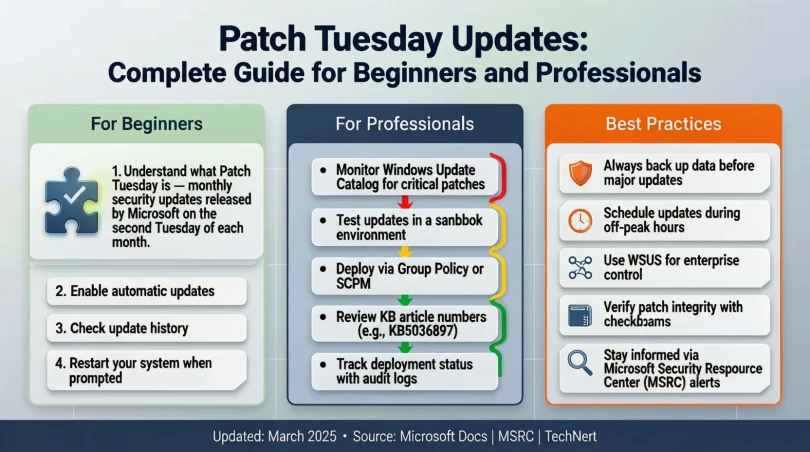
Patch Tuesday Updates refer to the monthly updates released by Microsoft on the second Tuesday of every month. These updates are part of Microsoft’s commitment to maintaining secure and stable operating systems.
- Scheduled Updates: Microsoft chooses a predictable schedule to release security patches, bug fixes, and performance enhancements.
- Security Patches: The majority of Patch Tuesday Updates are designed to fix vulnerabilities in Windows, Office, and other Microsoft products.
- Bug Fixes: Along with security patches, these updates fix software glitches, compatibility issues, and minor errors.
- Feature Improvements: Occasionally, Microsoft includes feature updates to improve user experience.
Patch Tuesday Updates are designed to make system maintenance more organized and predictable. Instead of receiving random updates that can interrupt work, users and administrators know exactly when updates will arrive. This allows IT teams to schedule testing, backups, and installations without disrupting daily operations.
Additionally, Patch Tuesday is not just for Windows; it also includes updates for Microsoft Office, Internet Explorer, Edge, and server systems. This ensures that all components of Microsoft’s ecosystem remain secure and efficient.
Why is Patch Tuesday Updates Important?
Patch Tuesday Updates are critical for several reasons:
- Security Protection: Cybercriminals constantly exploit vulnerabilities in software. Patch Tuesday Updates close these security gaps to protect your system.
- System Stability: Updates fix bugs that can cause crashes, errors, or slow performance.
- Compliance Requirements: Many businesses must comply with security standards that require timely software updates.
- Improved Performance: Updates can optimize system resources, enhance software compatibility, and add minor improvements.
- Predictable Scheduling: Organizations can plan system maintenance efficiently because updates are released on a consistent schedule.
Without Patch Tuesday Updates, systems become vulnerable to cyberattacks, malware infections, and software incompatibilities. Businesses risk data breaches, while individual users may experience system crashes or data loss. Therefore, regular installation of Patch Tuesday Updates is essential to maintain both security and performance.
Detailed Step-by-Step Guide to Patch Tuesday Updates
Step 1: Check for Updates
- Windows 10/11:
- Open Settings.
- Click Update & Security.
- Select Windows Update.
- Click Check for updates.
- Windows Server:
- Open Server Manager.
- Navigate to Windows Update.
- Click Check for updates.
Checking manually ensures that you do not miss critical updates, especially if automatic updates are disabled.
Step 2: Review Update Details
- Microsoft provides a summary of updates with each release.
- Check the security bulletins to see which vulnerabilities are being fixed.
- Prioritize updates based on your system’s usage and risk level.
For example, if an update addresses a critical security flaw in Windows Remote Desktop, it should be installed immediately.
Step 3: Backup Your System
Before installing any updates, always create a backup:
- Personal Users: Use File History or an external drive to save important files.
- Businesses: Use system snapshots or enterprise backup solutions.
This step ensures that if an update causes unexpected issues, you can restore your system to a previous working state.
Step 4: Install Updates
- Click Install Now for available updates.
- Windows may require a restart to complete installation.
- For servers, schedule updates during off-peak hours to avoid downtime.
It’s important not to skip restarts, as pending updates may leave your system vulnerable.
Step 5: Verify Installation
After installation:
- Go to Windows Update history.
- Ensure that all critical updates are successfully installed.
- Check system functionality and performance.
Verifying updates ensures that your system is fully protected and running smoothly.
Step 6: Configure Automatic Updates (Optional)
- Go to Settings > Update & Security > Windows Update.
- Enable Automatic Updates for future Patch Tuesday releases.
- Choose whether to restart automatically or schedule the restart.
Automatic updates save time and ensure your system remains secure without manual intervention.
Step 7: Monitor for Issues
- After updates, monitor your system for errors or application issues.
- Use Event Viewer or Windows logs for troubleshooting.
- If problems arise, roll back the update using System Restore.
Regular monitoring helps catch problems early and ensures uninterrupted workflow.
Benefits of Patch Tuesday Updates
Patch Tuesday Updates offer several advantages:
- Enhanced Security: Protects against malware, ransomware, and other cyber threats.
- Bug Fixes: Resolves software glitches and improves system reliability.
- Performance Boost: Updates optimize memory and CPU usage.
- Predictable Maintenance: Scheduled releases make planning easier for IT teams.
- Feature Enhancements: Some updates improve user experience and software functionality.
- Compliance Support: Helps organizations meet cybersecurity regulations.
- Compatibility: Ensures applications run smoothly with the latest system versions.
By regularly applying these updates, users maintain a secure, stable, and efficient computing environment.
Disadvantages / Risks
While Patch Tuesday Updates are generally beneficial, there are some risks:
- Update Failures: Sometimes updates fail to install due to corrupted files or conflicts.
- System Instability: Rarely, updates can cause crashes or performance issues.
- Compatibility Problems: Some applications may not work immediately after an update.
- Time Consumption: Installing updates may require system restarts, interrupting workflow.
- Network Bandwidth: Large updates can consume significant bandwidth, especially in organizations.
Being aware of these risks allows users to plan updates carefully and avoid potential problems.
Common Mistakes to Avoid
- Ignoring Updates: Skipping Patch Tuesday Updates leaves systems vulnerable to attacks.
- Not Backing Up Data: Failing to backup before updating can result in data loss.
- Installing Updates Immediately in Enterprise Environments: Always test updates in a controlled environment first.
- Disabling Automatic Updates: Relying solely on manual updates may lead to missed critical patches.
- Overlooking Restart Requirements: Pending restarts can prevent updates from fully applying.
- Neglecting Update Logs: Ignoring update history may leave failed updates unresolved.
Avoiding these mistakes ensures a smooth update process and system security.
FAQs About Patch Tuesday Updates
1. How often does Patch Tuesday occur?
Patch Tuesday occurs on the second Tuesday of every month. Microsoft releases updates for Windows, Office, and other products on this day.
2. Are Patch Tuesday Updates mandatory?
While not technically mandatory, it is strongly recommended to install these updates to protect your system from vulnerabilities and bugs.
3. Can I delay Patch Tuesday Updates?
Yes, you can delay updates for a short period. However, prolonged delays increase security risks. Businesses often test updates before full deployment.
4. Do Patch Tuesday Updates require a restart?
Most updates require a system restart to complete installation. Some minor updates may not require a restart, but critical updates typically do.
5. How can I check which updates have been installed?
Go to Settings > Update & Security > Windows Update > View update history to see a complete list of installed updates.
6. What should I do if an update causes problems?
You can use System Restore or uninstall the problematic update from Update History. Always ensure you have a backup before installing updates.
7. Are Patch Tuesday Updates only for Windows?
No. Updates also cover Microsoft Office, Edge, Internet Explorer, and Windows Server systems.
8. What is the difference between Patch Tuesday and regular updates?
Patch Tuesday is scheduled monthly, while regular updates may be released irregularly for urgent fixes or minor improvements.
Expert Tips & Bonus Points
- Test in a Safe Environment: For businesses, always test updates on non-critical systems first.
- Use WSUS or SCCM: Enterprises can manage updates centrally using Windows Server Update Services (WSUS) or System Center Configuration Manager (SCCM).
- Monitor Security Bulletins: Microsoft provides detailed bulletins outlining the severity and details of each update.
- Set Active Hours: Prevent automatic restarts during work by configuring Active Hours in Windows Update settings.
- Keep Devices Updated Regularly: Don’t rely on monthly updates alone; enable automatic updates for security patches.
- Educate Users: Ensure employees or family members understand the importance of updates to prevent accidental delays.
Bonus Tip: For critical servers, consider creating a restore image before Patch Tuesday. This allows you to quickly revert in case of update conflicts.
Conclusion
Patch Tuesday Updates play a vital role in maintaining system security, stability, and performance. Released every second Tuesday of the month, these updates provide critical security patches, bug fixes, and occasional feature enhancements. By following a structured update process, including checking for updates, backing up data, installing updates, and verifying installations, users can ensure their systems remain safe and efficient.
While there are minor risks associated with updates, such as temporary instability or compatibility issues, the benefits far outweigh the drawbacks. Patch Tuesday Updates protect systems from cyber threats, enhance system performance, and support compliance requirements, making them an essential part of personal and business computing.
By avoiding common mistakes, following expert tips, and staying proactive, users can fully leverage Patch Tuesday Updates to maintain secure and reliable systems. Whether you are a beginner or an IT professional, understanding and implementing Patch Tuesday Updates is a crucial step in responsible system management. Staying up-to-date ensures your devices are protected, optimized, and ready to perform at their best.